Slip surface search
How cSlope searches for the critical slip surface, how to limit the search, and how to analyse surfaces of your own.
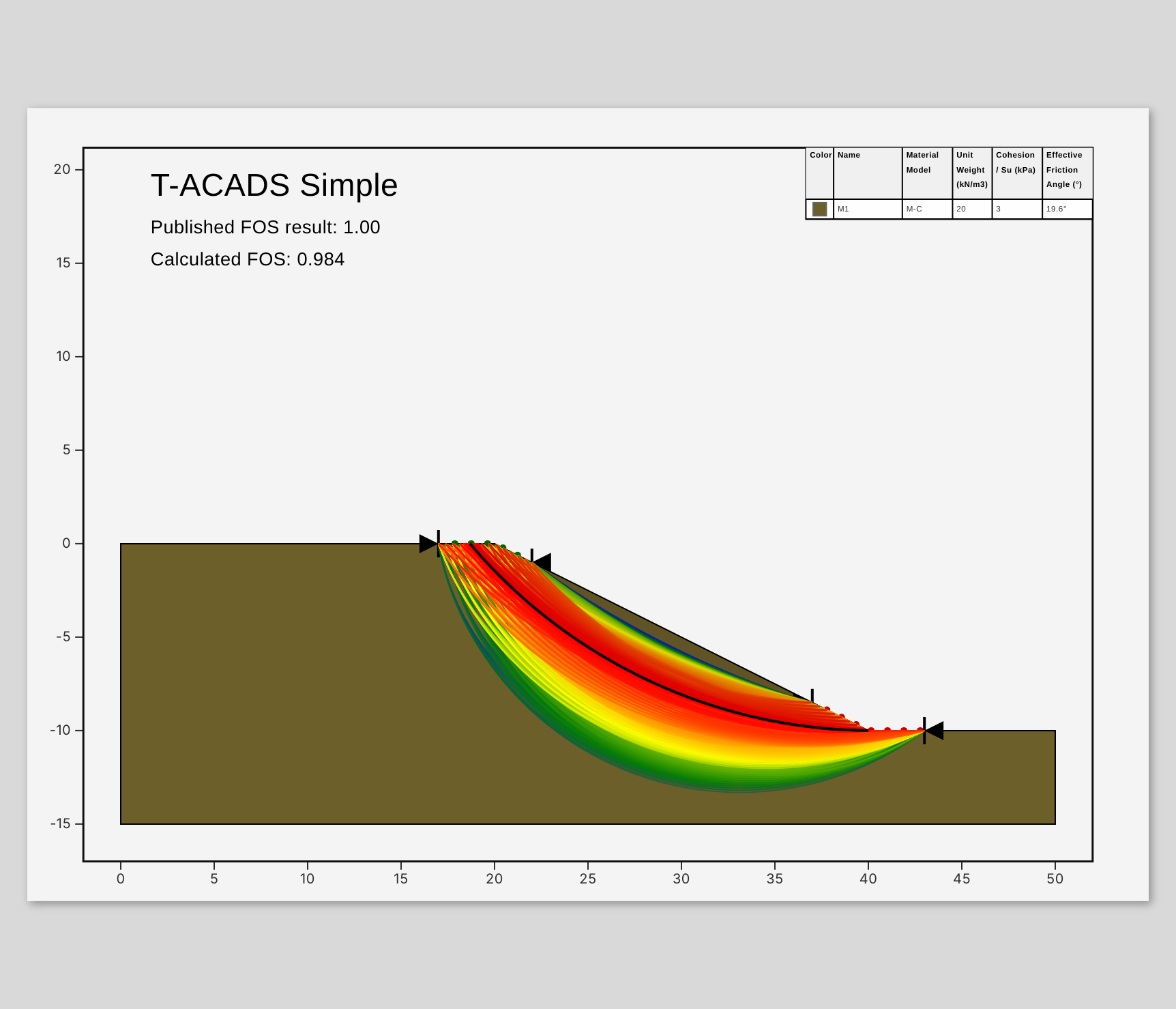
cSlope looks for the critical slip surface: the one with the lowest factor of safety. It generates circular surfaces between an entry range near the crest and an exit range near the toe, analyses each, and then refines the search around the best ones.
Search limits
Open Model › Analysis › Search limits and tick Restrict entry/exit ranges to choose where surfaces may start and end:
- Entry Range (crest side): Min X and Max X of the points where surfaces enter the ground.
- Exit Range (toe side): Min X and Max X of the points where they leave it.
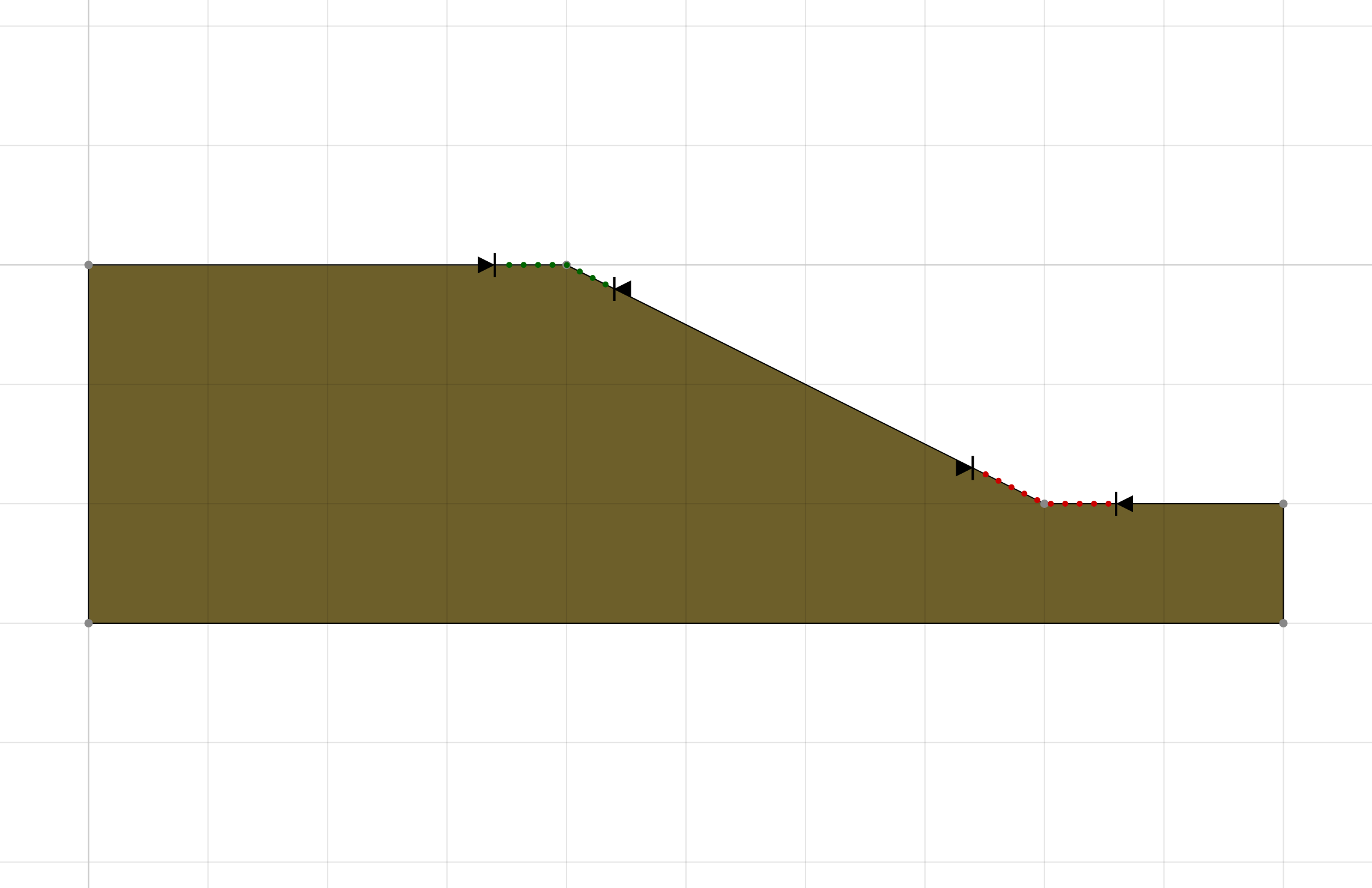
With the window open you can also drag the range markers on the canvas. Without limits, surfaces may enter and exit anywhere on the ground surface.
Restrict the ranges to the part of the slope you are assessing, and keep them wide enough that the critical surface does not end at a limit. If it does, widen the range and run again.
Search settings
The size of the search is set in Model › Analysis › Options:
| Setting | Range | Default | Meaning |
|---|---|---|---|
| Iterations | 500–100 000 | 1000 | Approximate number of trial circles: entry points × exit points × radii per pair (at least 5 radii per pair) |
| Refined Iterations | 0–100 000 | 500 | Additional surfaces around the best ones |
More iterations give a more thorough search and take longer. For a final analysis, check that doubling the iterations no longer lowers the factor of safety noticeably.
Analysis direction
Analysis Direction in the options sets whether the slope fails left to right or right to left. A DXF import guesses the direction from the geometry. Tick Analyse both sliding directions to search both: the opposite direction uses automatic search limits, and the lower factor of safety is reported, with the other one in the summary.
Shallow surfaces
Very shallow surfaces at the ground surface can give a low factor of safety that does not matter for the design, especially in frictional soil. Two settings in the options leave them out:
- Min. slip depth (m): surfaces whose greatest depth below the ground is less than this are not analysed. 0 means no limit.
- Min. sliding area (m²): surfaces with a smaller sliding mass are skipped. Empty means automatic (1 % of the square of the height of the slope); 0 means no limit.
Non-circular surfaces
Tick Non-circular optimisation in the options to let cSlope refine the best circles into non-circular surfaces. It moves the points of each surface to lower the factor of safety further. Use it where a weak layer or a stiff base makes a non-circular failure likely. The optimised surface is shown in the results like any other.
Custom surfaces
Open Model › Analysis › Custom planes to analyse surfaces of your own:
- + Add Search Plane adds a circle, given by its centre (cx, cy) and radius R.
- + Add Non-circular Surface adds a polyline through the soil. Enter its points as
x, y; x, y; …with x increasing, for example10, 5; 18, 1; 30, 2; 38, 9. The ends are extended to the ground.
Custom surfaces are analysed together with the search. Tick Custom planes only (skip random search) to analyse only your own surfaces, for example to check a published case or a surface found in the field.
Surfaces that are not analysed
A surface is skipped when it:
- enters bedrock (Impenetrable) or has a slice base in High Strength material,
- has no driving force in the sliding direction,
- does not reach equilibrium,
- is shallower than Min. slip depth or smaller than Min. sliding area (surfaces shallower than 0.1 % of the model height are always skipped),
- gives a negative factor of safety, or
- has a slice with (see Bishop simplified), where the normal force on the base has no meaning.
The result summary counts surfaces discarded for a weak equilibrium fit.